
AI Interview Assistant
Use Jobolar Desktop for the flagship private overlay in supported screen-sharing setups. In Chrome, place a visible translucent coaching window over browser interviews while keeping the interviewer visible behind it, or use Web for live and mock interview support.
What it includes
- Invisible Desktop Interview Assistant with private guidance designed to stay off supported screen shares
- Live Interview Assistant and Mock Interview practice
- Desktop click-through mode keeps guidance visible while you click the app underneath
- Draggable, resizable Chrome Translucent Focus Overlay with adjustable transparency
- Manual Listen and plan-eligible Smart Listen
- Live transcription, talking points, suggested and sample answers
- Answer structures, interview insights, and possible follow-up questions
- Text and microphone input, live waveform, and session controls
Product experience
A closer look at the workflow
Lead with invisible Desktop guidance, add Chrome’s translucent Focus Overlay, or use Web and mock practice.
Jobolar Desktop · Flagship interview experience
Private guidance designed to stay off supported screen shares.
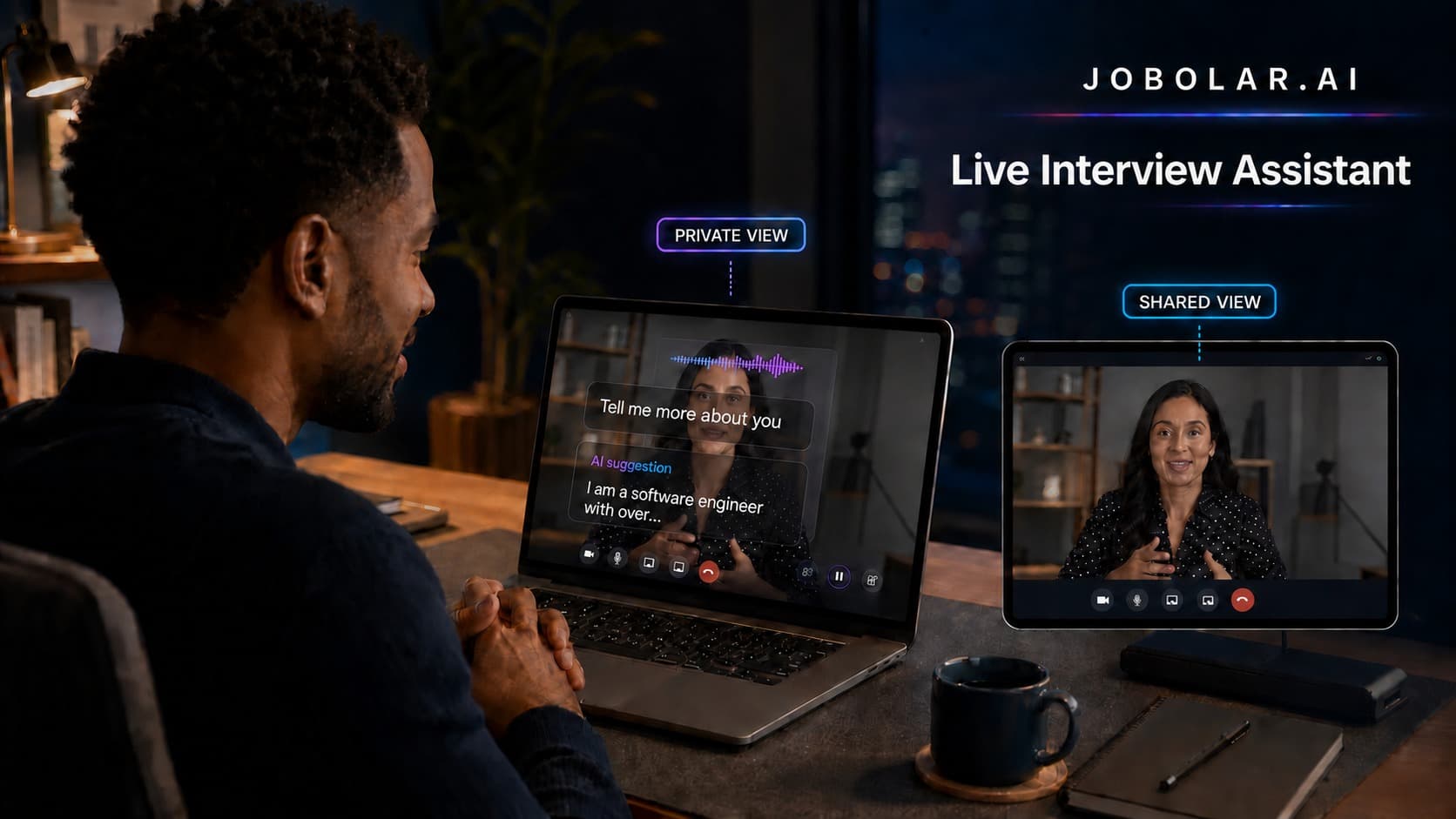
Jobolar Desktop layers live transcription, talking points, and suggested-answer starts directly over the interviewer video in your private view. In supported setups, the shared view stays clean.
- Overlay guidance directly on the interviewer video
- Click-through mode lets you interact with the app underneath
- Keep supported shared views free of Jobolar guidance
- Use compatible Windows and macOS setups
Availability
Web and Chrome access depend on plan capabilities. Desktop’s private screen-sharing experience is available where supported and is compatibility-dependent.
Plan access
Included allowances vary by Basic, Standard, and Pro; also available as an Interview Assistant-only subscription.
Where you use it
Jobolar Web, the Jobolar Chrome extension, and Jobolar Desktop for Windows and macOS
How it works
Prepare before the call
Choose your résumé, target role, language, input method, and test microphone permissions.
Choose your surface
Use the flagship Windows/macOS Desktop app, Chrome’s translucent Focus Overlay, or Jobolar Web.
Adapt the guidance
Listen to the interviewer, review Jobolar’s private prompts, and answer naturally in your own voice.
Install and connect
Choose where Interview Assistant runs
Desktop delivers Jobolar's flagship private overlay. Chrome adds a visible translucent coaching window over browser interviews. Web needs no installation.
Keep private guidance over the interview
Download Jobolar Desktop, connect it to your account, and place the private overlay directly over the interviewer video in supported setups. Enable click-through mode to interact with the app underneath while keeping your guidance visible.
Connect Desktop- 1Download the Windows or macOS app.
- 2Open Desktop and request a one-time connection code.
- 3Connect your Jobolar account in the browser; the code works once and expires after five minutes.
- 4Run Share Test before every interview, then choose the exact window or tab you intend to share.
After connection, Desktop stores its credential in Windows Credential Manager or macOS Keychain.
Privacy depends on the meeting app, operating system, and sharing mode and is not guaranteed. Always run Share Test.